Record a payment already made, have an authorized person confirm it, then check the invoice balance. This proposed exercise records a 40 DOP bank payment against the unpaid 75 DOP invoice for Torre A / 101 in Jardines del Lago. With no credits or other payments, confirmation should leave 35 DOP due.
Before starting on the website, check access to the documents and payment actions. Have the account, payer, date, method, reference and billing address ready. Subscription or service access and submission permission do not grant payment-confirmation permission.
The fictional records also contain a completed 250 DOP payment against a different, paid invoice. It does not support the proposed 40 DOP entry. Unit 101 has no assigned owner; reviewing its existing invoice and creating a new one have different prerequisites.
Choose the record that represents the work
An invoice charges a unit owner. A bill records an obligation to a provider. A payment records money received or paid against selected documents. Recording here does not initiate a transfer or verify that a bank settled it. Compare the evidence with the bank or source records before confirming.
For the example, use the existing homeowner invoice. Do not create a bill for the incoming payment or create a second invoice to acknowledge it. Select the correct community and inspect the invoice’s present amount due first; if another payment already changed it, use the actual balance rather than the example.
Start manually or from a document
- In the selected community, open Register Invoice Payment for a homeowner payment. For outgoing supplier payments, open Register Bill Payment instead.
- Enter a payment manually when the facts are already reviewed. For a receipt, choose Scan Attachment and follow the receipt workflow; applying extraction fills the form and does not save or confirm a payment.
- If creating a charge is the actual task, use the document-to-invoice tutorial or bill tutorial first. Avoid reusing a consumed document analysis to make a duplicate record.
Review an invoice or bill
Before paying, open the original invoice or bill and verify its reference, owner/unit or provider, bank account, currency, total and outstanding balance. Check attachments and any confirmed payments. Invoice creation and payment confirmation are separate events.
If you need to create the obligation manually, use the invoice or bill creation form and check recipient, dates, lines, taxes, discounts, bank account and final creation review. A generated PDF must agree with the saved record before distribution. The detailed document tutorials explain allocation and prior-balance decisions; do not apply a unit percentage twice.
The example list separates the paid 250 DOP invoice from the unpaid 75 DOP invoice; these are different obligations.
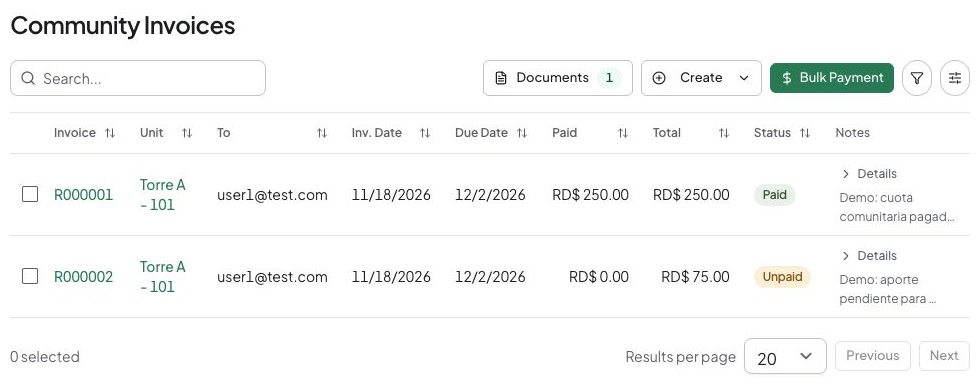
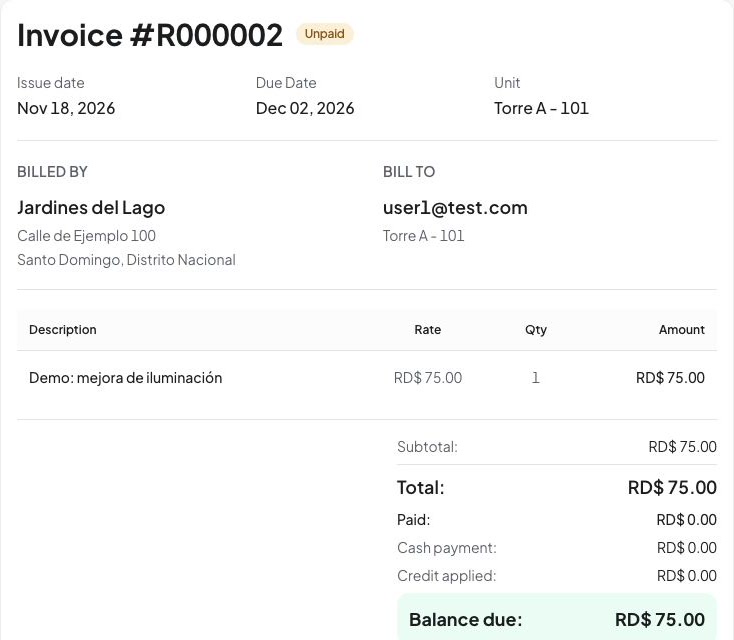
This is the starting 75 DOP due, before the proposed additional 40 DOP payment.
Clone recurring information carefully
Clone an invoice or bill from a list you are authorized to use. In the new form, check recipient, dates, reference, lines and total for the new period, then look for an existing charge before saving. Cloning does not establish a new obligation or payment. It does not copy payments, attachments, balance adjustments, late fees or recurring billing, so review the new form without relying on the source’s settlement history.
Record and verify a payment
1. Select the documents and identify the payment
- In Select Bills/Invoices to Pay, find the unpaid 75 DOP invoice. Check its unit/owner and amount due before selecting it. For a supplier payment, first select the provider and only that provider’s intended bills.
- Review the amount assigned to each selected document. For this example, select the 75 DOP invoice and record a 40 DOP cash component for the bank payment. The settlement summary should show 35 DOP remaining with no credits applied.
- Check Payer when shown. An authorized recorder can name the associated payer; another user cannot assign an unrelated person. If the screen requires a payer, resolve that selection before proceeding. It matters particularly when an overpayment may become available credit.
- In Payment Information, enter Payment Amount
40, the actual Payment Date, Payment Method, and Transaction Reference, for exampleDEMO-TRANSFER-40. The method describes how the real payment happened; choosing it does not send money. - Complete required Billing Address fields, including address line 1 and state/province, and review the remaining address values. Add explanatory notes or supporting attachments when useful. Use fictional evidence in a practice community.
2. Review cash and credits separately
- Read Payment Summary: payment method, credits, total charges, cash payment and remaining due. A credit balance is different from cash received. Leave credit applications empty for the example.
- If deliberately applying credits, review the source, selected document and amount for each application. Applying credit needs its own permission and a valid available balance. Do not enter the same amount as both cash and credit.
- A credit-only settlement follows a different result: it records credit applications and can return you to credit notes rather than create a payment. It cannot include a scanned payment receipt. Use the credit guide for that task.
- If a scanned source uses another currency, review the source currency, optional conversion and recorded amount. With conversion off, the numeric amount is recorded unchanged in the community currency. Refresh an expired quote and review again.
3. Submit the pending record
- Choose Pay. Despite the button name, this workflow records the payment; it does not operate your bank account.
- In Confirm payment, recheck selected documents, payer/provider, cash, credits, date, method, reference, address and recording currency. Choose Cancel to edit a mistake.
- Choose Confirm once. After success, open the saved payment in Payments. Check its reference, amount, distribution and Pending status. At this point a successful submission is not a posted confirmation.
4. Confirm and prove the balance changed
- A user with payment-confirmation permission opens that same payment. Check its evidence and distribution before using Confirm. If unavailable, ask the authorized financial reviewer; do not create another payment.
- Read Confirm Payment and the invoices/bills the payment will affect, then choose Confirm in that dialog. This second confirmation posts the pending payment; it is distinct from confirming submission of the form.
- Check the payment’s Completed status and recorded confirmation date. Open the unpaid 75 DOP invoice from its distribution and check that amount paid increased by 40 DOP and the remaining due is 35 DOP, assuming no intervening changes.
- If the balance differs, inspect other payments, credit applications and allocation amounts before acting. A completed payment must not be deleted to conceal a discrepancy.
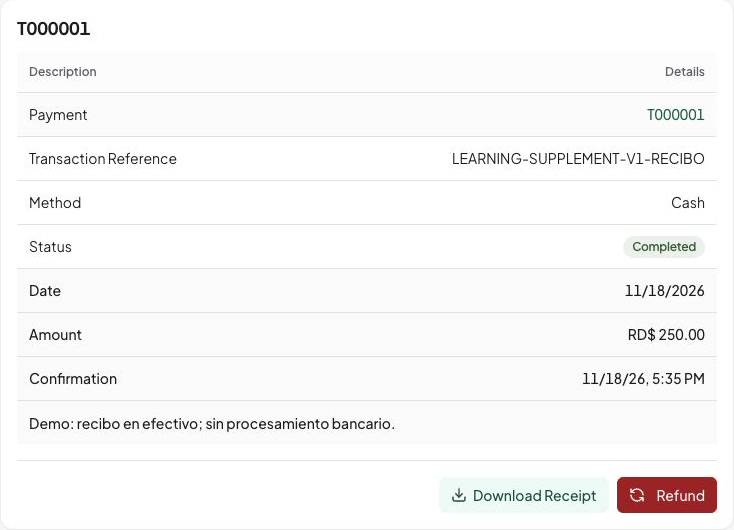
The existing Completed 250 DOP receipt is a separate example record, not the result of the proposed 40 DOP exercise.
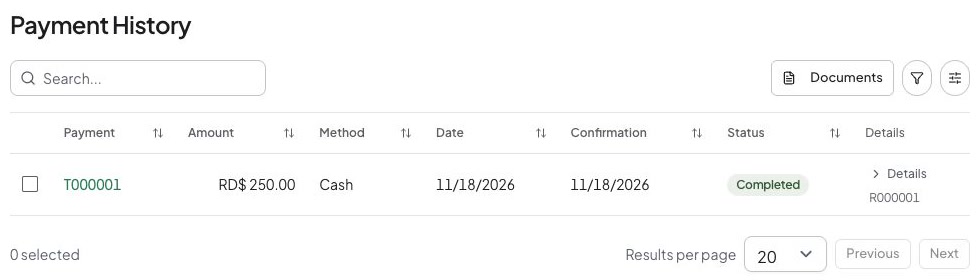
Inspect method, status, amount, and confirmation separately. This example cash receipt does not prove bank processing.
Recover without recording twice
If form validation fails, use the highlighted errors to correct missing documents, amount, payer, date, method or address, then re-open the submission review. If a quote or totals change, recheck the updated review.
If saving or confirmation returns an uncertain error, inspect the existing payment list/detail and original invoice first. The payment may already have been saved or confirmed. A pending payment can be reviewed and confirmed by an authorized person; it does not require another cash entry. For an incorrect pending record, follow the available cancellation process; for confirmed money, use the supported credit/refund correction after review. Recording a refund does not send a bank refund.
For a permission, subscription or service error, ask the responsible administrator to resolve the restriction. Give support a reference and safe error wording, without private receipt contents or signed download links. Next, learn credit and correction rules or receipt-assisted entry.