Use these steps to create and verify your account, sign in, or recover access. If you already have an account, recover that account before creating another. In this example, Alex Rivera uses one email address to join Jardines del Lago through the administrator’s community link. Verifying that email and getting community approval are separate steps.
Use the account connected to your community
- If you already use Urbira or received a personal invitation, use the email connected to those records. Creating another account does not transfer memberships, messages, or financial history.
- If you arrived through a community request link, keep that link open and use its Create an account or I already have an account options. After authentication, continue the joining tutorial.
- If you are starting without a community link, choose Sign up on the application website. Account creation does not require community administrator permissions. Community creation and paid services have separate availability requirements.
These steps cover the website. Sign in separately to an installed mobile app using the same identity. For platform differences, consult mobile and website availability.
Create an account with email
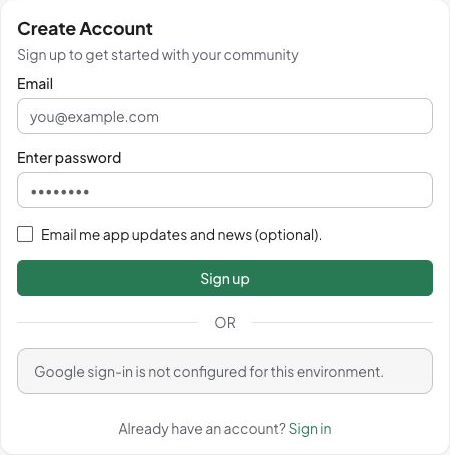
- On Create Account, enter your address in Email. Check spelling before submitting: verification goes to that inbox.
- In Enter password, choose a password with at least eight characters and one digit. Keep it private; use a password manager if you have one.
- Leave Email me app updates and news (optional). unchecked unless you want these messages. The form starts unchecked, and your choice does not replace email verification.
- Choose Sign up once and wait for Great! Check your email. Continue in your inbox; this message does not confirm community membership.
- Open the Urbira verification message and follow its complete link. For ordinary signup, success shows Your email is verified. Choose Continue to log in.
- Sign in with the same address and password. For a signup started through a community request link, the verification continuation can sign you in and return you to finish that request instead. Check the named community before proceeding.
Check that you can sign in with the verified address. Alex must still review and send the community access request: creating the account has not assigned Torre A, unit 101, or approved residency.
If the address is already registered, use Sign in, Forgot your password?, or the email-code method below. Do not change addresses merely to get past an existing-account message.
The blank signup form shows what to prepare before registering.
Recover an incomplete verification
- Check the address you entered, then your spam or junk folder. Open the latest verification message, including the complete URL.
- If you need another link, open Resend verification email on the check-email page. Enter the same address in Email and choose Resend verification email once. The response says a link will be sent if your account needs verification, without revealing whether another person’s account exists.
- Open the newest message. If the verification page says This link is incomplete., return to the original message and open its full link. For a temporary verification error, use Try again when shown.
- If the account is already verified, return to sign-in. If a community-specific continuation has expired, return to the original community link and follow the available resend/recovery route.
If the page says another account is signed in, confirm the email identity before choosing Sign out and continue. This signs out the current browser identity to finish the new-account flow; it does not transfer its community access.
If the connection fails, keep the page open and follow the displayed error. The form does not save a password draft. Before registering again, check your inbox and try account recovery. Keep verification links and codes private, including from administrators and support agents.
Sign in with the appropriate method
Password or Google
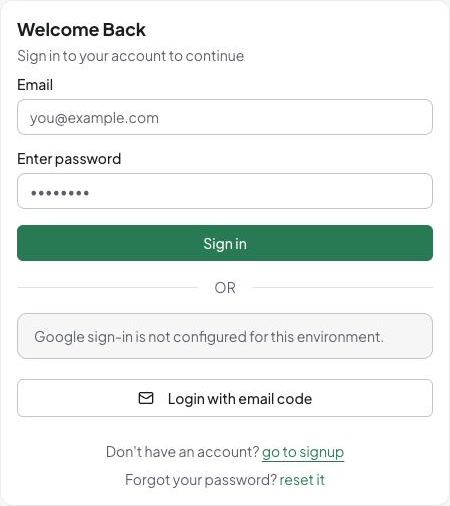
- Open Sign in on the application website. Enter Email and Enter password, then choose Sign in.
- If you established your account through Google, choose Continue with Google where available and select the same Google identity. If Google is unavailable for your account, use an established alternative for that account.
- Complete any additional verification requested. For two-factor authentication, choose Send Verification Code and enter the six-digit code from the current email. Do not choose Trust this browser for 30 days on a shared device.
- Confirm the intended account and community workspace load. A missing community can be a membership issue even when sign-in succeeded.
Email code
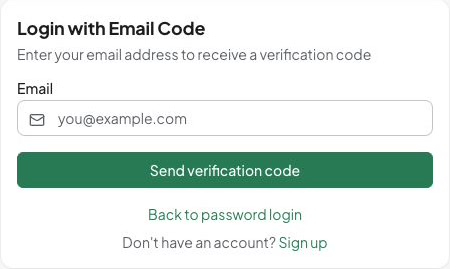
- Choose Login with email code.
- Enter your registered Email and choose Send verification code. The response does not confirm whether an account exists for the address entered.
- Enter the six-digit code from the current message. If needed, use Change email address to correct the address or Resend code after the displayed waiting period. If the code is invalid or expired, use the current message rather than guessing.
- Confirm that sign-in completes under your existing identity.
Apple sign-in on supported mobile installations is an existing-account method, not the email signup procedure described here. An Apple private relay address can differ from your Urbira address. If matching fails, use your established method and contact support rather than create a duplicate account.
This is the sign-in starting screen, before authentication.
Start by entering your email to request a code.
Reset a forgotten password
- From sign-in, choose Forgot your password?.
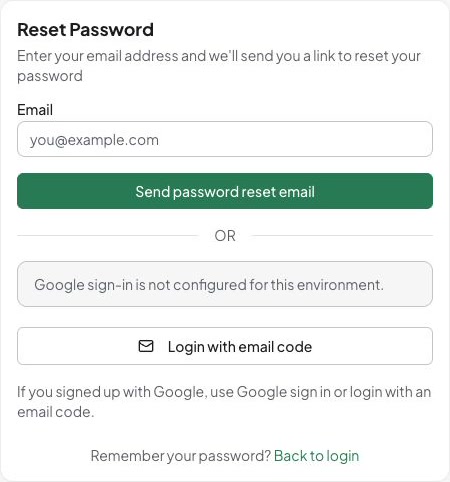
- Enter Email and choose Send password reset email. The result is intentionally neutral: a matching account that uses a password receives a reset link.
- Open the reset message. Enter Enter password and Confirm password with the same new password, at least eight characters long, then choose Set new password.
- Wait for the password-reset success message and use Go to login. Sign in with the new password.
- Sign in again on other devices as needed. A successful reset revokes existing sessions; it does not remove community membership.
For a missing or invalid reset link, request a new one from the reset-request page. For Google-only access, use Google or the offered email-code method; the neutral reset confirmation does not establish that a password account exists.
If Alex can sign in but still cannot open Jardines del Lago, check My requests and ask the community about membership. For unresolved account failures, contact support with the screen name and safe error wording. Do not send passwords, codes, or verification/reset links.
The image shows the reset-request form before the email is sent, rather than a completed reset.