Open Documents on the website to resume a saved analysis or find the record it created. Compare the analysis with its source before approving financial record creation. Use fictional documents when practicing.
Start with the existing analysis
- Open the intended community and confirm its name.
- Before uploading a financial document again, look for its existing entry in Documents. The same workspace can also open as a smaller panel from a financial flow.
- Have a filename or reference ready, plus the expected document type. For example, use a fictional maintenance invoice already in the demo.
- Check your permissions and applicable usage credits before starting or retrying a metered task.
An analysis stores extracted data and its connection to a source file. It does not become an invoice, bill, or payment merely because extraction completed. Access to the analysis, source file, and created financial record can differ. Missing controls can indicate access restrictions rather than an extraction error.
Find the document on the website
- In Documents, enter a distinctive part of the filename in Search document….
- Use Document type to narrow to Invoice, Bill, Payment, or Other as relevant; return to All documents if unsure.
- If it is missing, open Options and choose Show archived. Use Show active to return to current entries. Clear the text and type restriction when needed.
- Browse additional result pages rather than assuming the first page is the entire history.
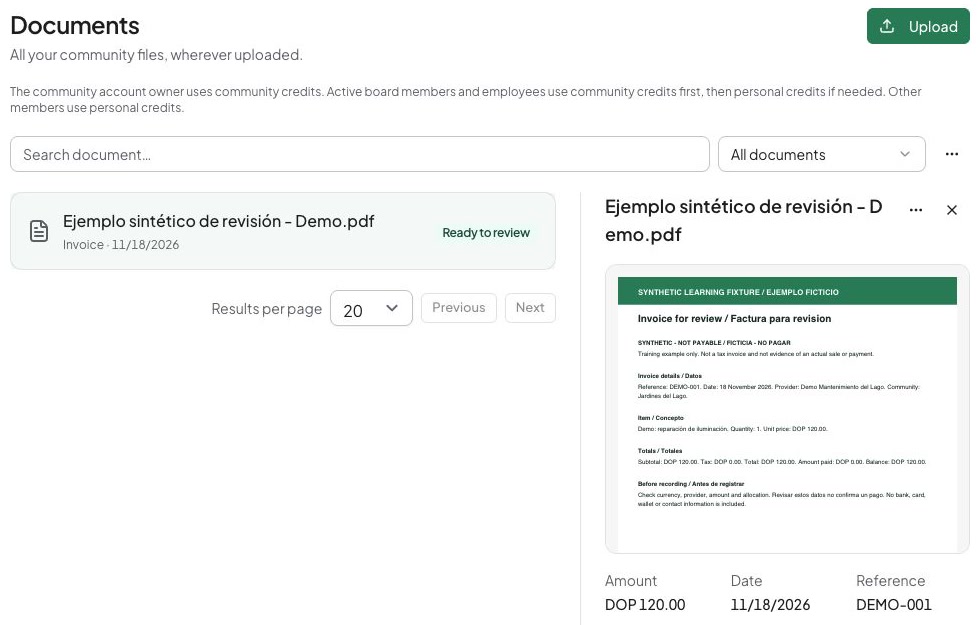
- Select the intended row. Inspect its details, status, type, reference, date, and amount when available.
- Use View original to compare the saved source with the displayed data. A failed inline preview does not necessarily make the extraction result unavailable.
For the full history, open the dedicated Documents page. A panel inside a financial task can omit archived or already-used analyses and show only entries you can act on. Check the dedicated page before uploading the document again.
The example history includes a saved sample for review, not a completed AI analysis.
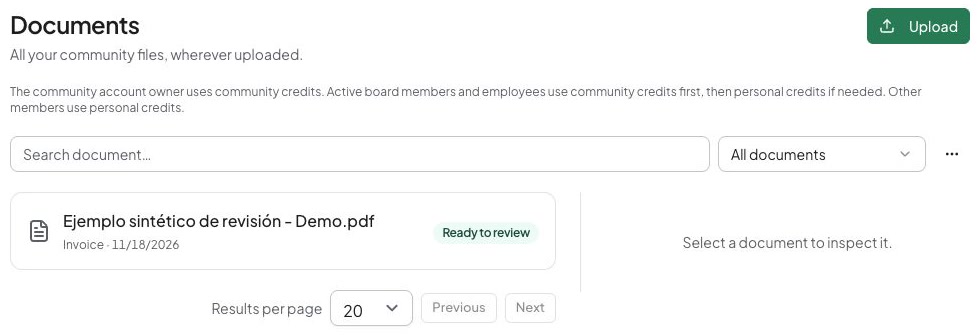
Read the status before acting
- Queued or Analyzing means work is pending or running. Wait, then use Options → Refresh if needed. Do not launch another analysis solely because processing takes time.
- Ready to review means extraction finished. Select Review data to inspect and correct the information before creating a record.
- Could not analyze or Cancelled means the attempt is unfinished. Review the detail and availability of Retry analysis.
- View created record means this analysis has already produced an accessible financial record. Open it instead of creating another.
- For a completed unused analysis, choose Review data.
- Compare the source and extracted recipient, reference, date, amounts, currency, line items, and allocation as relevant.
- Correct errors using the review form. Follow the document-to-invoice guide or financial records guide before confirming record creation.
- After creation, return to Documents and check the created-record action where available.
A result used to create line items counts as used, even without a normal invoice link. Open the intended existing record or review form instead of creating a duplicate. You may need separate permission to open the created record; a green analysis status alone does not confirm that access.
This saved sample review shows 120 DOP and its source PDF. Compare them before continuing; the sample was prepared without automated extraction.
Retry or correct the analysis type
- Select the existing active, unused entry and read the failure or current state.
- Resolve connection, permission, service-credit, or source-access problems first. Manage credits is available where the workspace offers that action.
- Check Document type in the detail panel. If the saved type is wrong, choose the intended type before proceeding.
- Choose Retry analysis only when ready for another analysis of the saved file. Check any credit notice: retrying runs analysis again and may consume credits.
- Wait for the queue/analysis state, then inspect the new result and compare the original again. If the response was interrupted, refresh history before repeating: replacement work may already exist.
Type changes and analysis are disabled for used results, active processing, or archived entries as applicable. Changing a type does not convert an invoice already created into a bill. Correct the existing financial record through its authorized workflow.
Use the selected document’s archive action when you intend to move it out of the active list; read the archive confirmation. To revisit an archived entry, show archived documents and use restore when offered, then return to active history. Archiving is not deleting or reversing a financial record. Reopening or restoring an analysis does not undo an invoice or payment.
If a preview is unavailable, use View original when permitted or continue inspecting the extracted data. Reopen the source action for a renewed authorized link. A new upload is not the first remedy for an expired link. Ask an authorized administrator to check persistent source-access failures.
Understand the mobile difference
The native application may show a pending-upload queue instead of the full website history. Expanded history and actions depend on the installed release. If a completed, canceled, failed, or used item is absent on the phone, inspect Documents on the website before assuming the source or financial record was deleted.
Keep the same community and account while comparing screens. Use the mobile and web guide for platform availability and file-preview help for ordinary attachments. Repeated uploads or analysis retries can create extra work and consume credits without recovering access.