Open the existing accounting credit and check whether it can settle the intended invoice before applying it. In Jardines del Lago, the fictional example starts with 25 DOP of available manual credit and a 75 DOP unpaid invoice. Applying 10 DOP would leave 15 DOP available and 65 DOP due, provided the invoice is eligible and no other changes occur. This is a proposed exercise; no application has been completed.
Demo Resident lives in Torre A, unit 101, which has no assigned owner. Residency establishes neither credit ownership nor permission to issue, apply, refund or reverse credit. Check the note’s named beneficiary and eligible documents. Do not assume the credit belongs to the resident or assign ownership to enable the exercise.
Before starting on the website, have the approval, actual beneficiary, currency and target document ready. Check the permission for your task:
| Task | Required access |
|---|---|
| View a note | Access to that note |
| Issue a note | Credit-note creation permission |
| Apply credit or record a refund | Update permission |
| Reverse credit or a movement | Reversal permission |
The subscription must also allow the change.
Understand the balance before changing it
Accounting credit notes represent amounts owed to owners or available with providers. They are separate from the usage credits that fund AI and other metered Urbira services. Buying usage credits cannot settle a homeowner invoice; issuing an accounting credit does not increase an AI wallet.
Select the correct community and open Credit notes in its financial tools. Your role determines whether you can view, issue, apply, refund, or reverse a credit. A permitted owner can have read-only access to their own credits; being a resident or being able to open an invoice does not automatically grant that right. Ask authorized community staff to make changes.
Inspect the credit and its source
- Open the intended community and choose Credit notes.
- Select the owner or provider side and use Filters to narrow the beneficiary/account, status, and dates. If nothing matches, remove a filter or choose Reset filters before concluding there is no credit.
- Open the note code. Read Original credit, Available, Applied, and Refunded, then inspect Origin, Source document, and Movement history.
- In the current demo, locate the existing manual note with 25 DOP available. Confirm its actual beneficiary and history. An available balance of 25 does not by itself prove its original credit was 25 or that it has never been used; read those fields separately.
- Open the unpaid 75 DOP invoice and check its current beneficiary/account, currency, and amount due. Use it for the proposed application only if the form lists it as an eligible document for this note. A shared community or unit is not enough to establish a match.
A source may be outside your permissions even when a credit is visible. Ask an authorized reviewer to check it rather than interpreting a missing link as unused credit or issuing another note. A current unit owner is not a substitute for a credit’s named beneficiary.
Locate the existing 25 DOP manual credit rather than issue a duplicate.
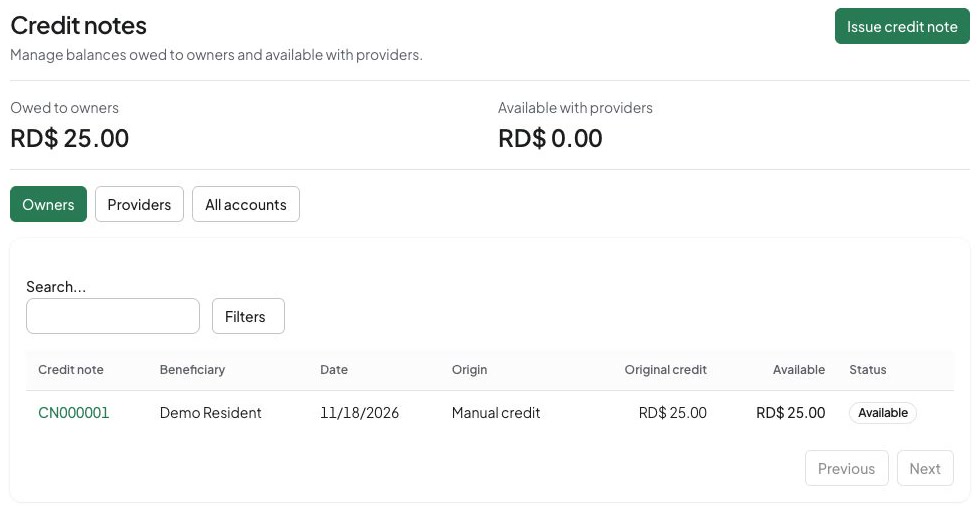
This existing example note has 25 DOP available, zero applied, and zero refunded; the 10 DOP application remains a proposed exercise.
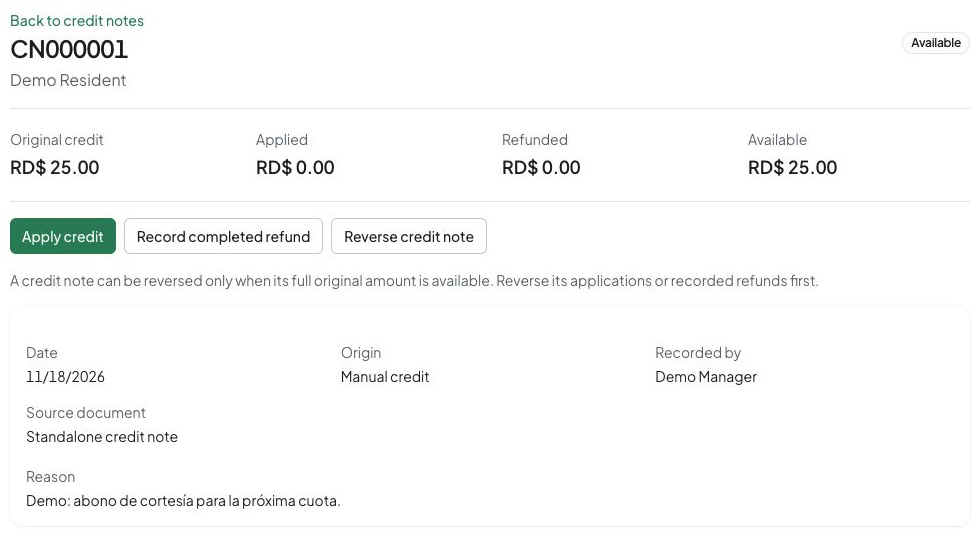
Issue or apply credit
Use the existing note; issue a new one only for a separate approved reason
The demo already has 25 DOP available. Do not choose Issue credit note merely to reproduce that balance. Open the existing note first. An invoice adjustment or excess payment may also have generated the credit already.
For a genuinely separate approved manual credit:
- Choose Issue credit note and set Credit account to Owners or Providers.
- Search for and select the actual Beneficiary. Do not select Demo Resident as an owner on the basis of residency or change the account to bypass an unavailable beneficiary.
- Enter the approved Amount, actual Date, and Reason. Add Provider reference for provider credit when relevant. Amounts use the community currency and permitted decimal precision; there is no exchange-rate step.
- Choose Review changes and compare beneficiary, amount, currency, and reason with the authorization. Choose Confirm and record only when correct.
- Open the new note and verify its separate issue in Movement history and its available amount. This creates another credit; it does not transfer money or recover an existing note. If refresh fails after a success message, check the list before issuing again.
Proposed exercise: apply 10 DOP from 25 DOP
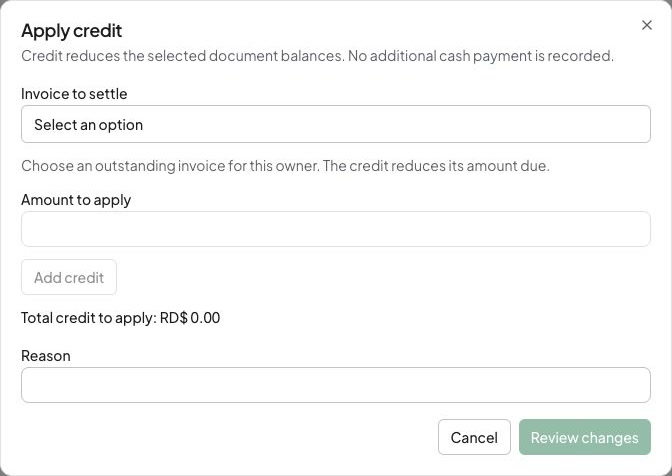
- On the existing eligible note choose Apply credit. Select Invoice to settle for an owner credit or Bill to settle for provider credit.
- If the unpaid 75 DOP invoice belongs to the correct beneficiary and is eligible, select it. If it is not offered, stop this exercise and ask authorized staff to check the account; do not create another invoice or reassign ownership as a workaround.
- Enter
10in Amount to apply, then choose Add credit. Merely entering an amount does not add it to the reviewed selection. - Check the selected row and Total credit to apply. Each allocation must fit the document’s amount due, and the combined allocations must fit available credit.
- Enter the Reason, choose Review changes, and check Available before
25and Available after15, in DOP. Confirm the selected invoice and expected 65 DOP remaining due. Choose Confirm and record once only if you intend to perform this new transaction. - Reopen the note and invoice. If the exercise was actually completed with no intervening changes, available credit should be 15 DOP, its applied amount should have increased by 10 DOP, and the invoice should have 65 DOP due. Until then, the starting 25 DOP credit and 75 DOP due remain the actual starting state.
Credit-only settlement records no additional cash payment. The separate completed 250 DOP demo receipt does not demonstrate this proposed application. If a payment uses both cash and credit, review them separately in the payment workflow.
The blank allocation form has no selected invoice or amount. No application has been recorded.
Record money already refunded
- Match real bank evidence to the actual beneficiary and refund direction: money sent to the owner or received back from the provider.
- Choose Record completed refund only after that transfer actually happened. In a hypothetical continuation after the 10 DOP application, refunding the remaining 15 DOP would use
15, the actual date, Bank account, Payment method, Refund reference, and Reason. This refund is hypothetical; the example records show no refund. - Choose Review changes, check the beneficiary and available balance before/after, then Confirm and record only for money already moved. Keep the evidence in the community’s approved records.
- Confirm the refund in Movement history and the exact remaining available credit. A full refund of that hypothetical 15 DOP remainder would leave zero; a partial refund leaves its calculated remainder.
This action records a completed refund; it does not initiate a transfer. Recording it in advance falsely states that money moved. Reversing the record later does not reverse a bank transaction.
Correct an adjustment or movement
- In Movement history, identify the exact mistaken application or recorded refund. Use Reverse movement only when eligible; read the effect and enter a clear reason.
- Review and confirm the opposite movement, then check the credit and affected document. The historical entry remains visible. If the hypothetical 10 DOP application above was the only intervening change, reversing it would restore 25 DOP available and 75 DOP due; this is a hypothetical result.
- To reverse an unused manual/opening credit itself, first restore every application/refund until its full original amount is available. Check Original credit, not the example’s starting available balance, before choosing Reverse credit note and confirming.
- For source-generated notes, follow the linked original adjustment/payment and the explanation shown. Not every origin offers the same direct-note reversal.
If an action is unavailable, distinguish missing permission, insufficient available balance, a reversed note, an ineligible document, or a source restriction. Ask authorized staff rather than change beneficiaries or issue another note to bypass it. If balances change during review, reload and rebuild the selection.
If the connection fails, check the note code, movement history and target balance before retrying; the change may already be saved. Deleting a record does not erase posted financial effects or replace a correction. Verify the actual saved balance and history after your action rather than relying on the proposed exercise’s arithmetic.