Open Files on the website to find an attachment, check its source record, and preview or download the version you need. For practice, use the fictional Lobby maintenance estimate.pdf or another document you are authorized to read.
Start with the record that owns the file
- Open your community and check its name in the workspace.
- If you know the invoice, payment, project, post, unit, or other record, open that record first and inspect its attachments.
- Compare the filename, description, and record details before opening a file. Two similarly named PDFs can support different transactions.
Access follows the owning record and your permissions. An old download link does not restore access to a private or deleted record. Check the source record to confirm which version is approved; the preview alone cannot tell you. Keep the source record as your reference rather than bookmarking a temporary file URL.
Find an attachment
- Open Files in the community workspace.
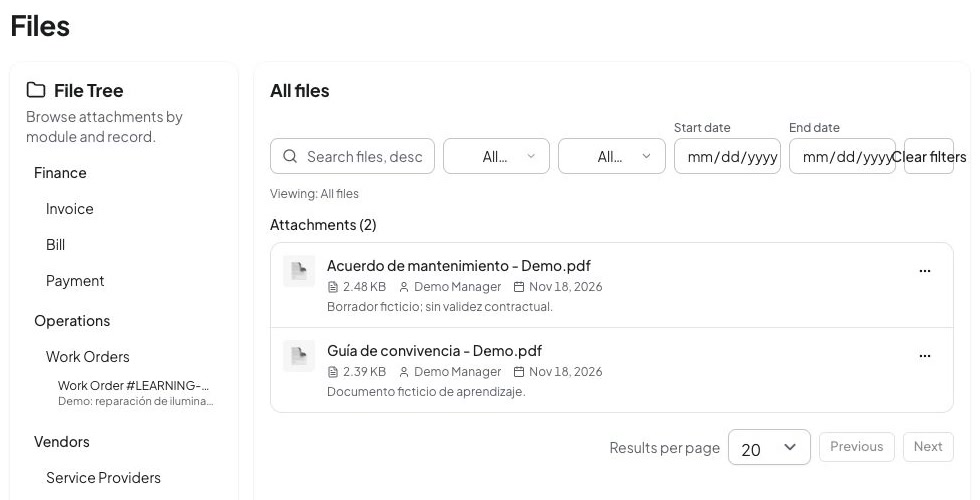
- Enter a distinctive filename fragment or description in Search files, descriptions…. Try
Lobbyfor the example. - Use Filter by category, Filter by uploader, Start date, or End date when you know those details. Avoid guessing all filters at once.
- Open File Tree to browse by module and record. Choose the appropriate group, record type, and source record to narrow the attachment list.
- Inspect the displayed selection. Use Clear selection to remove the tree restriction and Clear filters to reset the search/filter controls. Continue through the list’s pagination if necessary.
Before opening a match, check that both the filename and source record are correct. Mobile Files availability and controls depend on the installed release; if the index is absent, use the owning record or the website. See mobile and web availability.
The listed PDFs are fictional examples. Match the filename to its source record.
Preview or download
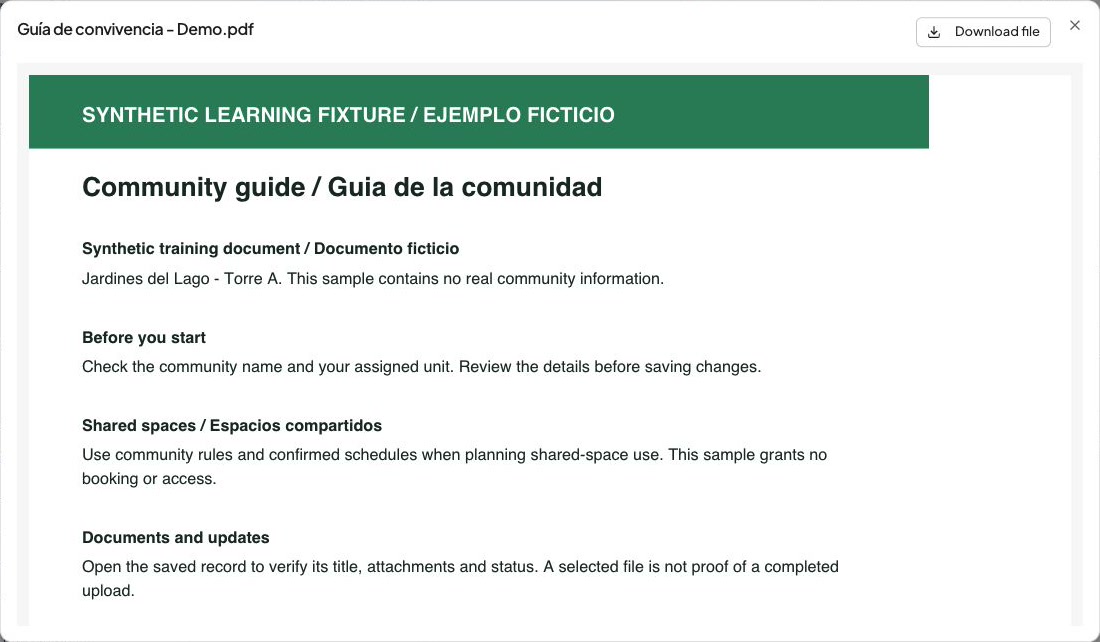
- Select the file’s available preview action. Wait for its content or a clear error before clicking again.
- Read enough of the file to confirm its identity. Compare a document date, reference, or title with the source record.
- Choose the download action for a local copy. If the viewer offers Download file, use it when inline viewing is unavailable.
- Check your browser’s downloads and open the saved copy before closing the source record. Browser settings can open a new tab or ask where to save.
Images, PDFs, supported DOCX files, and spreadsheets have different viewers. An accepted attachment format, such as ZIP, does not guarantee a preview. Signature documents and analysis sources have their own access paths. Follow the picker rules for the particular workflow; do not assume one universal upload limit.
The fictional PDF has loaded in the preview. Downloading is a separate action.
Recover a preview that stops loading
- Check your connection, signed-in account, and selected community.
- Close the preview and reopen the file from Files or its source record so Urbira can request a current authorized link.
- Use a displayed retry action when offered. If inline viewing still fails, try the explicit download action and confirm the downloaded file opens.
- If the record itself is unavailable, ask an authorized administrator to check your current access.
Links can expire. Mobile releases with link renewal can recover some load failures automatically, but renewal cannot restore revoked permission. Do not upload a duplicate or forward a temporary link to work around access. If the problem persists, report the record type, filename, and approximate time. Share private file contents only when necessary.
Upload with clear context
- Open the record that should own the evidence and use its attachment control.
- Select a relevant file with a descriptive name and wait for upload confirmation.
- Complete the record’s save action when required, then reopen the saved record and verify the attachment appears and opens.
- Keep your source copy until this check succeeds.
Uploading to the wrong record can expose the file to the wrong audience. Confirm the community and record before selecting files. Removing an attachment changes access to supporting evidence; check your community’s record practices and your authority before deleting it. If you were looking for extracted financial data instead, continue with document analysis history.