Select your community, then use the website’s workspace search to find the original record. For practice, search for a distinctive word from a project you can access or a known invoice reference.
Choose the community first
- Open Your Communities and look for the community name.
- If the card is missing, clear the name search and check the creator filter. Created by me and Created by others describe who created the workspace, not ownership of homes or your complete permissions.
- Use Sort communities to choose name order or newest/oldest first. Sorting changes order; it does not grant access or restore an archived community.
- Open the card and verify the community name before searching records.
A list filter can hide a card even when membership is unchanged. If clearing it does not help, ask the administrator to confirm your access before requesting another invitation. Creating another community is not a way to recover an existing workspace.
Search records in your community
- In the desktop web header, open Search your community, or press Command+K on macOS / Ctrl+K on other supported desktop keyboards.
- Confirm the community name shown inside the search dialog. Outside a selected community, the control searches navigation pages rather than community records.
- Type at least two characters. Use a distinctive title word or reference, such as a project name or invoice number. Pause briefly while results load.
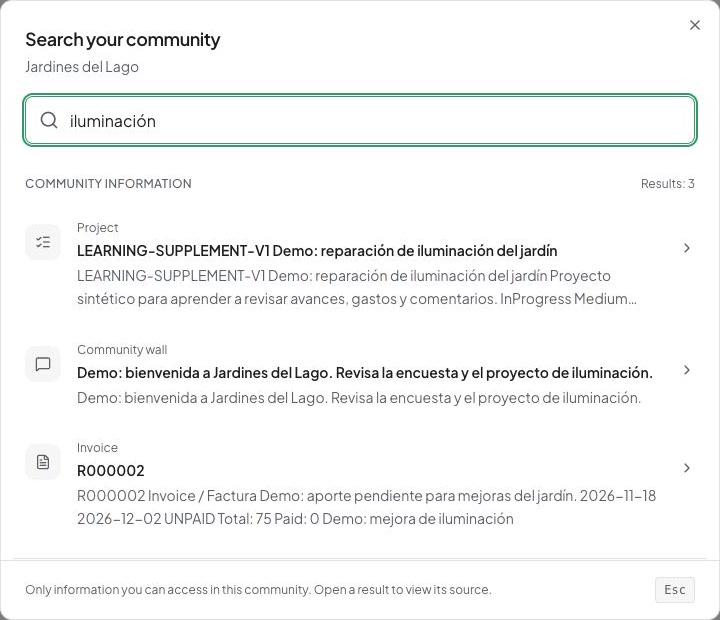
- Under Community information, inspect the result type and title. The Pages group contains navigation destinations; it is separate from record matches.
- Open the relevant result and verify its current status, date, amount, or other identifying detail in the source record.
Search can return authorized projects, posts, visible comments, financial records, people, units, events, and file metadata. It respects your current community and role; two colleagues may see different results. Attachment metadata means names/descriptions, not every word inside a PDF. Private conversations use Messages search.
Open the original record to review financial data and current permissions. To edit it, use the actions available there.
The search dialog distinguishes community records from navigation pages.
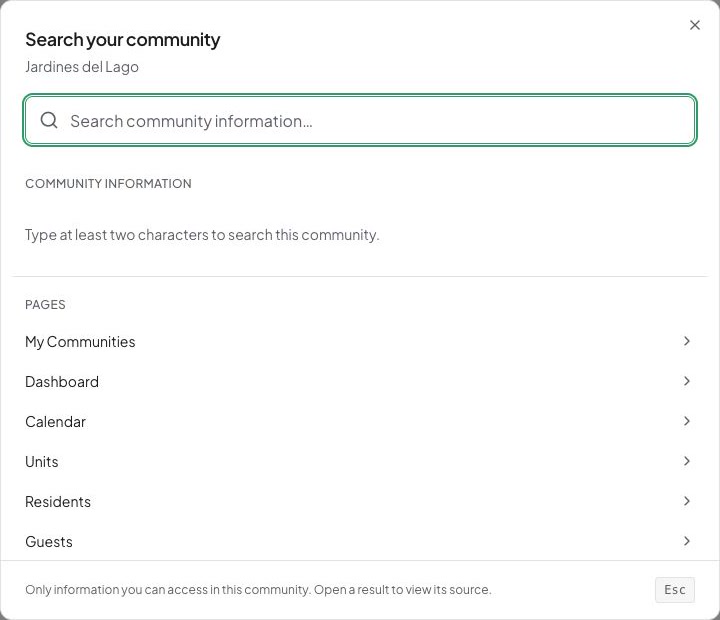
These fictional search results illustrate matches in the selected community. Open the source record to verify its present details.
Improve an unhelpful search
- If the dialog asks for more text, enter at least two characters. Remove unnecessary words from a long sentence.
- Try a reference, a shorter distinctive word, another spelling, or the original language of the record.
- Clear the query and check the community name again. Close the dialog and use the record’s own list, such as Projects, Invoices, or Files, with its own filters.
- For a newly saved record, allow time for search to update. Open it through the normal list while waiting.
- If results fail to load, use the displayed retry control when available or close and reopen the dialog after checking connectivity.
If nothing appears, the record may have been renamed, hidden, archived, or removed from your access. It may still exist, so check with an authorized administrator before creating another invoice or project. Give the record type and reference without sending private document contents.
The workspace search trigger is currently shown at desktop width. On a narrow phone browser, use the feature’s normal list and search controls rather than looking for an unavailable header shortcut. Native app search can differ by release; check mobile and website availability.
Search for instructions instead
- Open Urbira’s public Help or Resources area when you need instructions rather than community records.
- Choose English or Spanish and search for a task, such as joining a community or reviewing an invoice.
- Open the guide and check its prerequisites and platform notes before following the steps.
- Return to your signed-in application and perform the authorized task in the correct community.
Public help results contain product instructions, not your community’s private invoices, people, or files. If a guide is missing from public search, browse the directory directly. You still need the required role permissions, and mobile controls can vary by installed release. For attachments, continue with files and previews.