Review the supplier’s current charges and prior balance before creating a bill. In this hypothetical scenario, Example Cleaning sends Jardines del Lago a statement with 120 DOP in current cleaning charges and 50 DOP from an earlier period. If another bill already records the 50 DOP, record only 120 DOP in the new bill. Include the prior balance for a total of 170 DOP only if it is genuinely unrecorded and authorized.
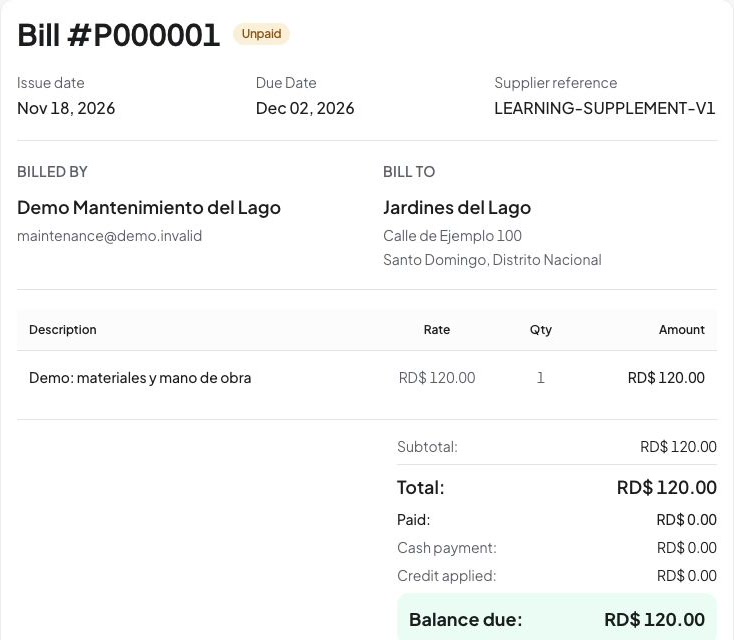
First inspect the existing unpaid 120 DOP bill in the fictional records. Do not duplicate that obligation. The statement and 50 DOP prior-balance decision below describe a separate hypothetical bill; practice creation with a different fictional source and reference.
Prepare the source and authority
On the website, check that you can analyze documents and create community bills, that analysis is enabled, and that you have sufficient usage credits. Have the provider and correct bank account ready. Creating a provider during review requires its confirmed name and email; do not invent contact details. A bill is payable to a provider; a homeowner invoice charges a unit. Follow these steps on the website; this guide does not cover the installed mobile app.
Check the bill list, payments and prior records for the statement reference and 50 DOP balance. Use only fictional documents in practice. The example calculations describe a proposed bill, not a completed payment.
1. Upload the bill once
- Select Jardines del Lago and open Documents.
- Choose Upload, select Bill, and continue to Upload Bill. Choose a readable PDF, JPG, PNG or WebP up to 10 MB, then Upload and Parse.
- Wait for analysis. If you close the panel, inspect the saved document in Documents. Queued and Analyzing are processing states; Ready to review offers Review data. View created record means you should inspect the existing result before considering another bill.
- Open Review Extracted Data and compare it with the original. If preview fails, consult the original file before approving the figures. Confidence and extracted vendor details are suggestions to check.
2. Match the provider, account and current charges
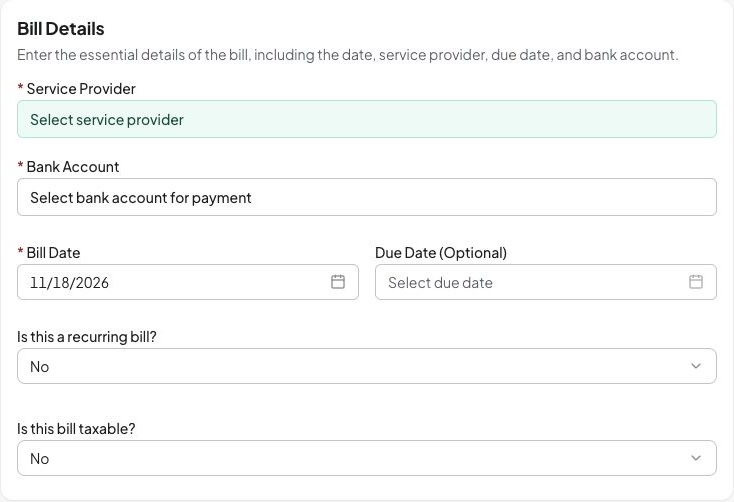
- Under Select Provider, select Example Cleaning. Confirm it represents the intended payee; a similar name is insufficient. Use Create New Provider only when it is genuinely absent and you have permission and verified details.
- Select the correct Bank Account. This records the account context; it does not pay the supplier.
- Check Bill Number, Bill Date, due date and notes. Use a unique fictional reference such as
CLEAN-DEMO-120for practice. - Review every description, quantity, rate, tax and discount against the source. For this example the current cleaning charges total 120 DOP. Correct a misread line instead of forcing the total with an unexplained adjustment. Add a missing line with Add Item when needed.
- Check the printed total separately. The supplier’s 170 DOP statement payable includes history; it does not mean current charges are 170 DOP.
This blank bill form has not been submitted; select the correct provider and payment account before continuing.
3. Decide whether the prior balance belongs here
- Read the prior-balance warning and compare the 50 DOP with existing bills and payments. The software cannot decide whether another record already accounts for it.
- If already recorded, choose the option that excludes it, such as Exclude balance already recorded. Verify the final total is 120 DOP.
- If genuinely absent and authorized, choose to record current charges with the carried balance and confirm that adjustment has not already been recorded. Verify 120 + 50 = 170 DOP. Do not make this choice merely because it matches the printed statement total.
- For a prior credit, review the sign: it reduces the payable. A document credit is different from analysis usage credits and from creating or applying an available financial credit note.
- Use an optional rounding adjustment only for a verified rounding difference. Investigate missing charges, taxes, discounts or quantities first. If the reviewed total differs, understand and explicitly confirm the reviewed amount before continuing.
4. Check the recording currency
- Confirm the document currency and the community recording currency. The example uses DOP for both.
- If they differ, decide whether conversion is intended. With Apply currency conversion, wait for a valid quote and inspect rate and Total to record.
- Without conversion, numeric amounts are recorded unchanged in the community currency. For example, 200 EUR becomes the numeric amount 200 in a DOP community; it does not remain a foreign-currency bill. Resolve the intended treatment before continuing.
- Refresh an expired quote and review the total again. Do not assume an unavailable rate makes unconverted entry equivalent.
5. Create and check the saved bill
- Choose Create Bill after resolving required review decisions.
- In Confirm bill creation, compare provider, bank account, due date, source/recording currency, current charges, prior adjustment, rounding and final total. Use Back to review for corrections.
- Choose Confirm and create bill once. Open the resulting bill in Bills.
- Verify the reference, provider, account, currency, lines and amount due. In the already-recorded-balance branch, the new bill should total 120 DOP; the separate earlier 50 DOP record remains separate. Do not assume the combined account balance is only 120 DOP.
- Check that the source document points to this record. Creating a bill does not make a supplier payment or prove all community approvals occurred. Follow the payment tutorial to record an actual payment separately.
The existing bill shows 120 DOP due and zero paid, not a completed supplier payment.
Recover without duplicating the obligation
For a failed analysis, inspect the saved source and use its retry control where available. Re-analysis may consume credits. Correct a wrong document type before it creates a record. Resolve unavailable service, permission or credit messages before retrying.
If creation returns an uncertain result, inspect the bill list and the source’s created record first. Do not submit a fresh upload simply because the response failed. If the bill is wrong, have the authorized reviewer use the supported correction process; avoid deleting financial history to remove a duplicate balance. See document analysis recovery and credits and corrections.