Before starting a task that costs credits, check which account can pay and whether its balance covers the full charge. Use this website guide to check the wallet, buy credits for the right account if needed, and verify the result. In the fictional Jardines del Lago, Alex owns the community account and Sam is an active authorized board member. A hypothetical task costs 10 credits: if Alex has 6 available and Sam has 20, eligible fallback can charge all 10 to Sam, leaving Alex’s 6 untouched. This illustrates one-balance funding, not a quoted price for any service.
Sign in to your own account and check the selected community and task’s credit notice. Have purchase authorization if you need a package. These steps cover website billing controls; native-app controls may differ.
Check three separate requirements
Before starting an AI-assisted document analysis, electronic contract, or another metered task, confirm your permission to perform it, the community’s subscription coverage, and the credit balance eligible to fund it. Meeting one requirement does not satisfy the others. Buying personal credits does not renew an expired community subscription or grant access to restricted records.
Usage credits pay for metered Urbira services. They are separate from community dues, invoice balances, and accounting credit notes. Read the subscriptions guide for plan coverage and the credit-note guide for accounting corrections.
Identify the eligible balance
Read your own wallet correctly
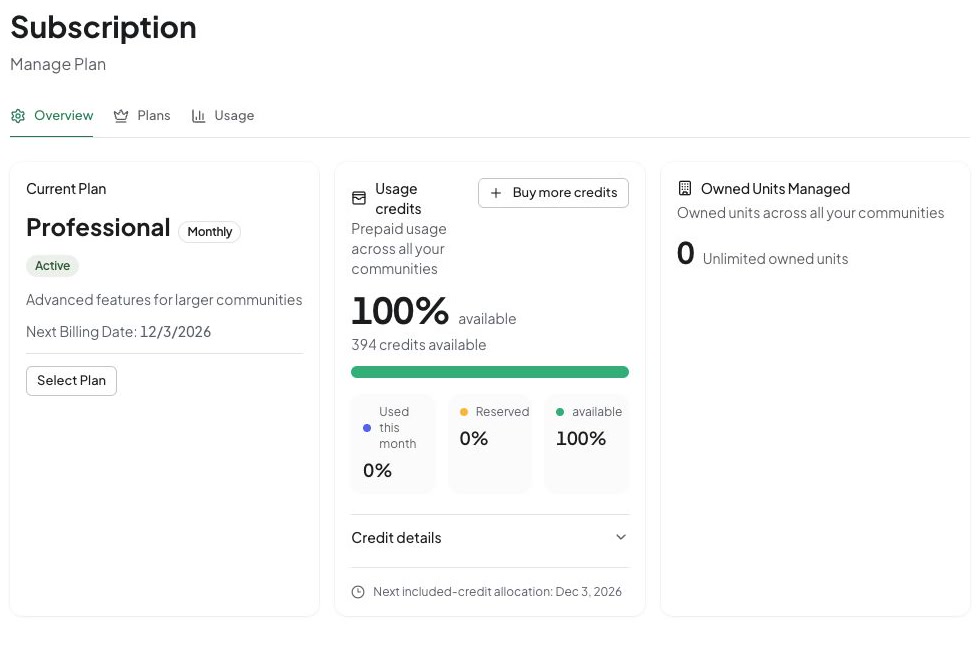
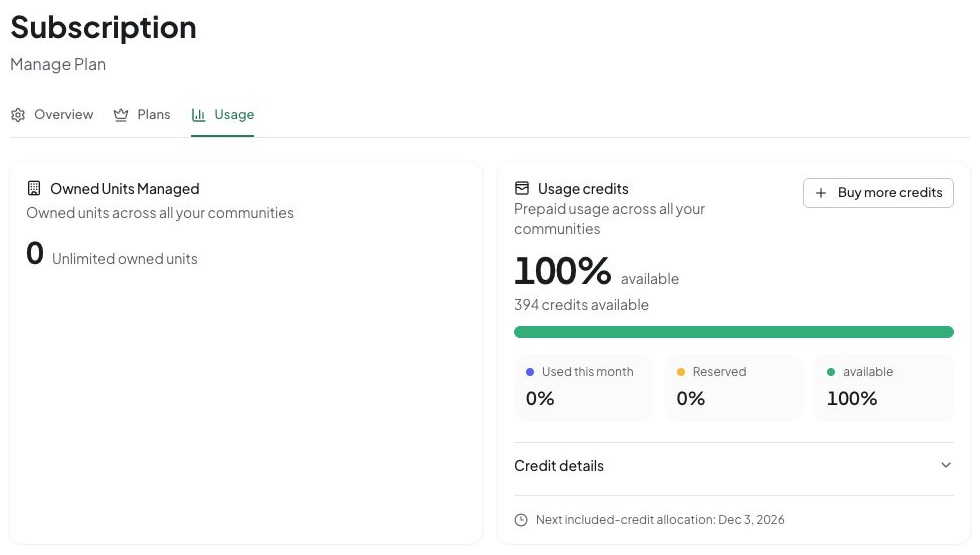
- Open My Subscription and choose Overview or Usage. Locate Usage credits.
- Read available, Used this month, and Reserved separately. Reserved credits are committed to work in progress; they are not another available balance to spend.
- Open Credit details to review available credits by source: Included, Purchased, and Previous balance, when present. Check the next included-credit allocation and listed expiration dates.
- If Usage is paused appears, resolve the account/subscription restriction before buying more. If usage details cannot load, retry; a loading error is not a zero balance.
- Ask Alex to check Alex’s own wallet when community-first funding applies. Your wallet view is not a live statement of another account’s available funds.
For work you initiate, the funding order depends on your current relationship to the selected community:
- The community account owner uses their own credit balance, which funds community work.
- An eligible active board member or employee uses the community account owner’s balance first. If that balance is insufficient, Urbira can use the initiating person’s personal balance.
- Other authorized users use their own personal balance. Owning a unit or being a resident does not, by itself, authorize spending community credits.
A task’s entire charge comes from one eligible balance. Urbira does not combine a small remainder from the community balance with personal credits to fund the same charge. Community-funded system notifications use the community account owner’s balance.
This example wallet separates available, reserved, and used credits. Its displayed balance is separate from the hypothetical funding arithmetic above.
Review before you continue
Check the task, then check its result
For the hypothetical 10-credit task, Sam needs an active, authorized relationship to use community-first funding or personal fallback. A board title alone is not enough. If neither eligible balance covers all 10 credits, the task cannot combine them.
Reservations can remain while work is underway. To verify completion, check the task’s result and wallet totals. A reservation alone does not confirm successful analysis or signing. A credit charge does not validate extracted fields, sign for another person, or post an invoice automatically.
- Confirm the community and the task you intend to perform.
- Read the credit notice shown with that workflow. Consider personal fallback before an eligible board member or employee starts community work.
- Open the subscription view to review the balance and usage available to your account. Ask the community account owner to check their balance when community funding applies.
- Complete the task’s own review and confirmation. For extraction, compare the result with the source before creating a financial record; credit availability is not approval of the extracted amounts.
- Check the task status and the recorded usage rather than repeatedly submitting the same work.
Resolve an insufficient-credit message
Purchase credits for the intended account
- Establish who needs funding. For community funding, Alex signs in to Alex’s account; for personal funding, Sam uses Sam’s account. Do not share a password to arrange this.
- In the wallet choose Buy more credits, or open Plans and find Purchase Credits. Compare the displayed packages, credit quantities and price. The purchase panel offers 100, 500 and 1000-credit packages; review the actual offer in your account.
- Choose the package’s Purchase Credits control and review hosted checkout. Confirm that you are purchasing a one-time credit package, not a subscription tier or community dues. Review currency and final total before authorizing payment.
- Return to the same account’s subscription page. Check Purchased and available in Credit details. Purchased packs have no scheduled expiration; included credits have the expiration dates shown in the wallet. Annual subscription payment does not allocate the full year’s credits at once.
- Reopen the blocked task and retry only after confirming it was not already accepted and the eligible wallet can fund it. More credits do not remove permission or subscription restrictions.
Recover without a duplicate purchase
If checkout is canceled, return to Plans; no successful credit delivery is implied. If it reports success but credits have not appeared, refresh the wallet and inspect Payment History. Wait for the result to reconcile rather than buying the same package again. Contact support with the purchase reference and approximate time if the result remains unclear. Keep card details, wallet keys and confidential source documents out of the message.
If sufficient credit is shown but the task is blocked, check Reserved, paused usage, the selected community, eligibility for community funding, and the underlying permission/subscription error. Ask authorized staff to resolve the stated restriction instead of moving the task to an unrelated account.
Adding credits to an unrelated account will not fund the task. Community-first funding can fall back to an eligible personal balance, but cannot bypass a paused wallet, missing permission or subscription restriction. Check current packages and expiration dates in your account; the subscription guide explains the different validity rules for included and purchased credits.
If the connection fails after you submit, reopen the existing task and check its status before starting another analysis or contract. A missing response is not proof that the work failed. If the result remains unclear, contact support with the task reference and approximate time; avoid sharing confidential document contents. Mobile controls depend on the installed release; use the mobile and web guide to choose an available route.
The account overview is where you check plan coverage and credits before purchasing; no purchase is demonstrated here.