Create a draft, publish it when ready, then confirm that an eligible owner’s vote was saved. The fictional example asks Which day works best for the courtyard cleanup?, with Saturday and Sunday as options. Use the result in your community’s decision process; it does not by itself provide legal approval, spending authority or a binding resolution.
Before you begin
These steps cover the website’s Polls screens. Native mobile screens and availability can differ.
Check permissions and ownership assignments before opening voting. Creating or publishing requires poll-management permission. To vote, you must currently be an eligible unit owner. Being a resident, employee, board member or manager with permission to publish does not by itself make you eligible.
Participation is associated with units. This tutorial uses an owner with one unit. If you own several, ask the administrator how your participation is counted before relying on the tally. Do not assume that one submission casts a separate vote for each unit or that you can select a unit.
1. Create a draft
- Select the community, open Polls, and choose Create Poll.
- Enter the cleanup question in Title. Use Description for the context, intended participants and how the result will be used. Add only files you are authorized to share.
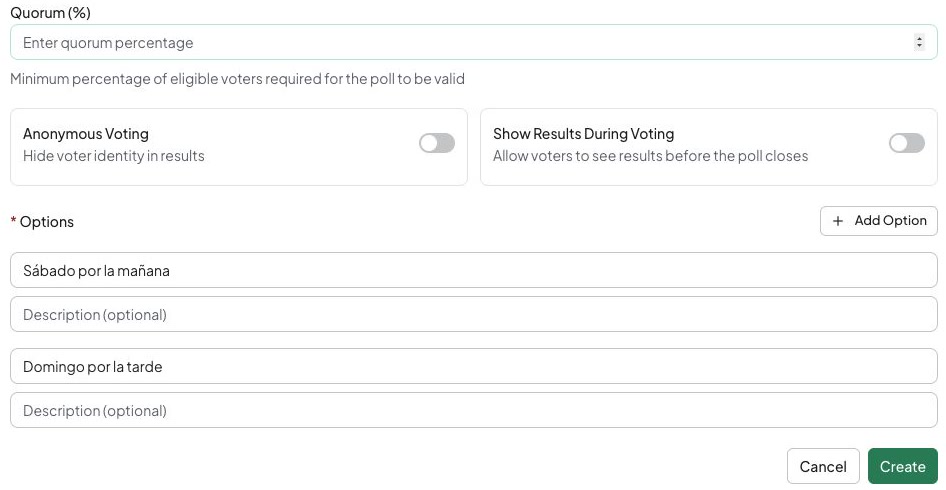
- Choose Single Choice to let each submission select one day. Add at least two Options:
SaturdayandSunday. Use Add Option for more choices and optional descriptions to explain them. - For Multiple Choice, set Maximum Choices to the number of options one submission may select. It cannot exceed the number of available options.
- Review Voting Starts and Voting Ends. With no start date, voting starts on publication. With no end date, it has no automatic end. Check the dates, times and time zone used by your device or interface. Other members may see a different local time.
- Set Quorum only after your community agrees on a participation threshold. Review Anonymous Voting and Show Results During Voting before saving. Anonymous voting hides voter identity in results; it does not promise anonymity in every retained system record.
- Choose Create. Open the saved poll and confirm Draft, question, options and dates. Saving the draft does not make voting available.
This poll editor is unsubmitted. Review its options and settings before creating or publishing.
2. Review and publish
- Open the draft and use Edit if you need corrections. Verify the wording, options, maximum choices, voting window, privacy and results settings.
- Choose Publish Poll. Read the warning that options cannot be changed after publication. Confirm only when they are final.
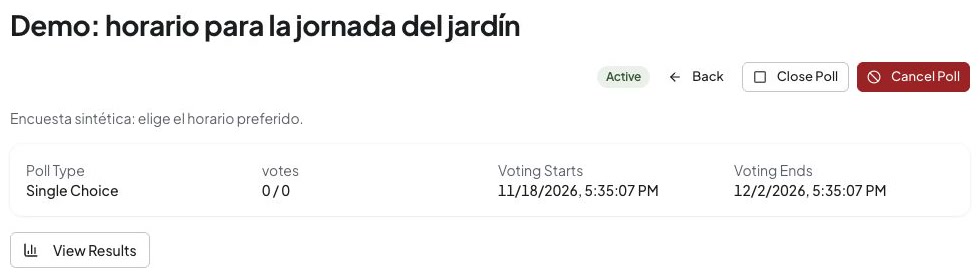
- Check the saved status. An Active poll with a future start still does not accept votes until its voting period opens. Check the start time as well as the status.
- Share the existing poll through your community’s approved communication process. Publishing does not prove that every eligible member received or read a notification.
If a published question or option is wrong, ask an authorized manager whether to cancel the poll and create a corrected one. Editing may no longer be available. Explain the replacement to participants so they can distinguish the two results.
This separate example poll is Active with no votes recorded.
3. Submit and confirm a vote
- Sign in with the eligible owner’s account, select the same community and open the poll.
- Read the full question, descriptions, voting window and selection limit. Select
Saturdayin this example. Selecting an option is not yet a saved vote. - Choose Submit Vote and wait for Vote recorded with Your choice. Reopen or refresh the poll and confirm the saved selection.
- While voting remains open, Change Vote lets you edit an existing choice. Select the revised option and save again; this replaces the saved choice rather than adding another participation entry.
If the poll is scheduled, closed, canceled or unpublished, read its notice. Residents without ownership may be able to read the poll but remain ineligible to vote. If voting ends while the form is open, it may reject the late submission.
4. Review results and finish the poll
- Use View Results when available. Managers can have broader access; other viewers may need to wait until closing when results during voting are disabled.
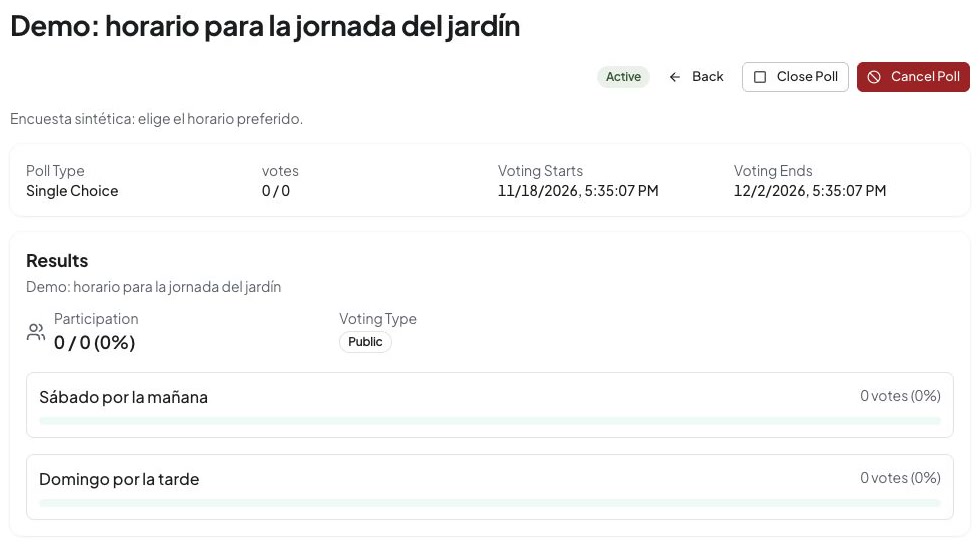
- Check Participation, Eligible Voters, option counts and the quorum indicator. Multiple-choice totals can include more selections than participating units. A quorum indicator alone does not prove that every legal or community decision requirement was satisfied.
- An authorized manager can choose Close Poll and confirm the warning that no further votes will be accepted. An end date also bounds voting. Confirm Closed and the final result after refreshing.
- Cancel Poll is a separate manager action. Read its confirmation and verify Canceled; do not describe a canceled poll as an approved decision.
Record the outcome through your community’s formal process when required. A closed result does not create a work order, authorize a purchase or issue payment.
This example shows zero participation. A resident without eligible unit ownership cannot submit an owner vote.
Recover and verify
Vote did not save: keep your selection, check the connection and retry using the current control. If you are unsure whether it saved, reload the poll to check your recorded vote before submitting again. A highlighted option alone does not confirm a saved vote.
Current vote or results did not load: use the available retry action and check the record before citing totals. A loading error does not mean the poll is empty or has zero votes.
No voting control: check the community, account ownership assignment, publication status and start/end times. An administrator should review eligibility; creating another account does not grant it.
Before finishing, confirm that the manager sees the intended poll and saved state, the eligible owner sees their recorded choice, and result visibility matches the settings. Keep any formal decision separate. Review record lifecycle before removing a poll, or access review when membership needs correction.